|
Using Network Folders |
|
How to access network resources! (c) 2007-2008 Hermetech International Ltd. |
||
|
|||||
|
**NOTE: This section only applies IF you wish to use shared network folders in your FSPM settings.
If you wish to run the FSPM as a MS Windows service AND you also wish to use shared network folders as either:
Then you must configure the MS Windows service to 'run' under a domain user logon. This isn't our requirement, it is just the way that Windows works. You see Windows services typically run under a 'Local System' account which is built into each computer, but local system accounts DON'T log into the network, and thus they cannot 'see' any network resources like network shared folders, or printers, etc.
When you run the FSPM configuration program, you ARE logged into windows as a user. So you can browse your network, select folders, test the system and even run in 'Local Processing' mode and everything works fine. Then you try and start the FSPM Service and BANG, nothing happens or the service fails to start.
To configure the FSPM service to run under a specific user logon, right click the 'EasyHL7 Filesystem Postmaster' service in the MS Windows Services Snap-in and select 'Properties'. Add the user in the 'Log On' tab and click 'Apply', then restart the service.
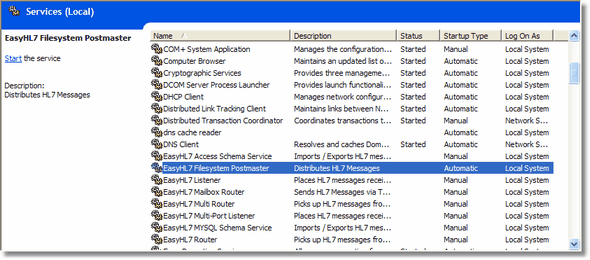 MS Windows Services snap-in
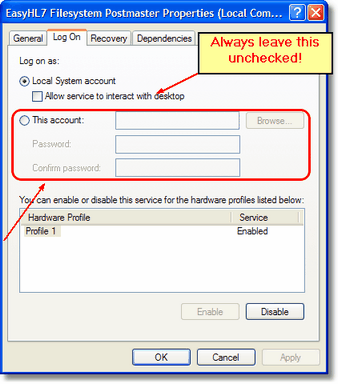 Log On Properties of Service
|