|
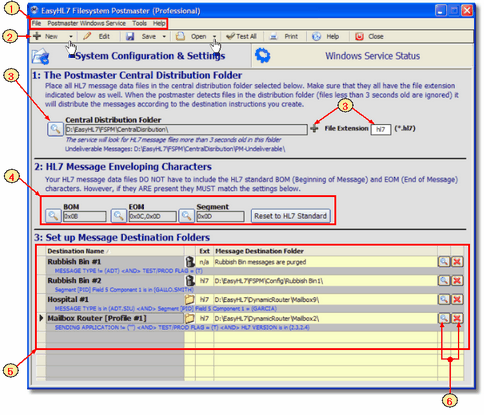
Configure, test and even run the FSPM from the main product window.

|
The menu. Use the menu options to perform many tasks. Create new destinations, rubbish bins, add message collection folders, start or stop the postmaster service. You can also get to online help, view / edit / print version definitions, etc. Explore the menus for yourself.
|

|
The toolbar. Buttons to perform the most important functions. Note the down arrows next to some buttons indicating a drop-down menu.
|

|
Click the 'Spyglass' button to change the central distribution folder. Click the + button to add/remove message collection folders. Also, you can change the HL7 message file extension to any valid 3 character file extension (hl7,txt,dat, etc. etc.)
|

|
The BOM and EOM characters. These are message enveloping characters used in HL7 messages for transport over TCP/IP. Your message files don't have to contain them BUT if they do they must match what you enter here. Also, the HL7 segment delimiter MUST match the value here. If you get confused click the 'Reset to HL7 Standard' button to set the values back to the internationally approved ANSI standard.
|

|
Your Message Destinations. An important note here is that the FSPM will process all of your message destinations in the exact order you see them here. Rubbish bins first and then all others.
|

|
Click the 'Spyglass' button to edit a particular destination. Click the X button to delete a particular destination. NOTE: If the FSPM MS Windows Service is running then you will need to restart it!
|
|