|
Getting Started |
|
Set up and configure in less than 15 minutes! (c) 2011-2012 Hermetech International Ltd. |
||
|
|||||
|
Step 1. This product is real-time monitoring software designed for use with the HermeTech UltraPort HL7 software. Before you can use it, you must have first installed and configured the UltraPort product. If you haven't done so, then visit www.hermetechnz.com/EasyHL7 to register and download a trial version before you continue.
Step 2. If you haven't already done so then download and install the UltraPort Monitor software.
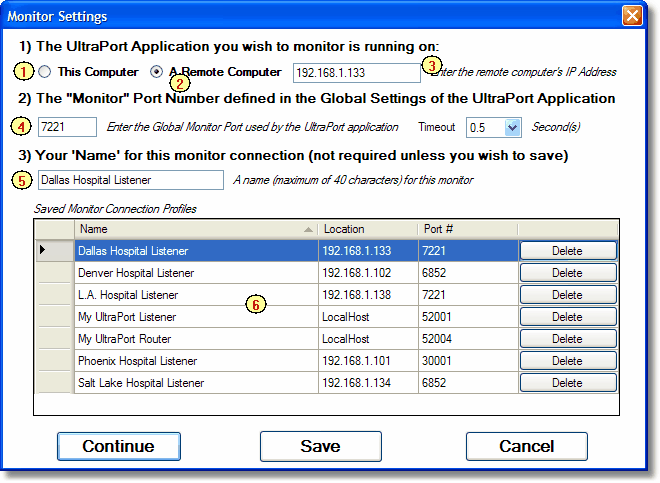
Step 3: Start the monitor software (during installation it places a shortcut on your Windows Desktop). If it's your first time running the monitor then you will be asked to set up your global settings (see below). After you have entered your global settings you click the 'Continue' button to return to the main window.
The global settings window
|