|
The main monitor window will show you up to the minute statistics for your UltraPort product. Activity is managed from the toolbar and viewed in the two main data panes of the window's client area.
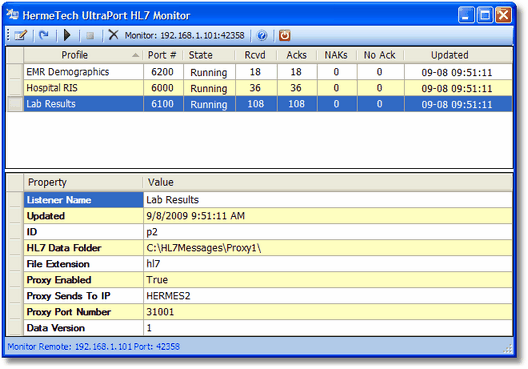
The Monitor Window
The Profile List (Top Pane)
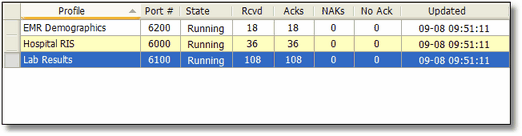 The Listener Profile List
In the top pane you can see a display which gives you current information.
| • | Profile Name - The name of the UltraPort Listener profile. |
| • | Port # - The TCP/IP Port number on which that listener is waiting for incoming HL7 messages. |
| • | State - The listener's current state (either Running or Offline). |
| • | Rcvd - The number of HL7 messages received by that listener (or sent by the router if you're monitoring an UltraPort router) since it was last started. |
| • | Acks - The number of positive HL7 Acknowledgements (HL7 Ack Type AA) sent by the listener back to clients (or received by the router if you're monitoring an UltraPort router). |
| • | Naks - The number of negative HL7 Acknowledgements (HL7 Ack Type AE or AR) sent by the listener back to clients. |
| • | No Ack - The number of HL7 messages received for which no acknowledgement of any kind was sent back to the client. |
| • | Updated - The date and time that the monitor last received data from the listener |
If you click on an item in the profile list you can see extended properties for that particular profile in the Profile Properties (bottom pane).
The Profile Properties (bottom pane)
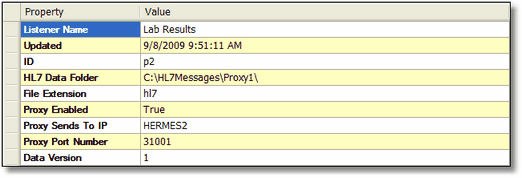 Profile Properties In the profile properties you can see more information about the particular profile selected in the profile list (top pane).
| • | Profile Name - Name of the selected profile |
| • | Updated - The date and time that the monitor last received data from the listener (same as top pane) |
| • | ID - The profile ID as configured in the UltraPort listener. |
| • | HL7 Data Folder - The full file system path where the listener is placing HL7 messages when it receives them. NOTE: Remember that this path is local to the computer running the listener. |
| • | Proxy Enabled - The UltraPort Listeners/Routers each have a FREE MicroSoft Visual Studio .Net application interface which allows software developers to write applications in Visual Studio languages (Like Visual Basic and C Sharp etc.) which can act as a 'Proxy' for an UltraPort listener/router. If enabled, the listener will forward all HL7 messages received on to that Proxy. For more information see the online help for the proxy toolkit OR the online help for the UltraPort Listener. |
| • | Proxy Sends to IP - If the Proxy is enabled this will either be the TCP/IP address or the computer name where the proxy application is running. |
| • | Proxy Port Number - If the Proxy is enabled this will display the IP Port number on which that application is being forwarded HL7 messages. |
| • | Data Version - In order to insure backward compatibility, every data packet the UltraPort listeners send to the monitor contains the monitor data version. If your monitor becomes outdated and receives a version which it cannot handle, you'll be notified via a message box to upgrade your monitor software. |
Toolbar Buttons


|
Open a new Monitor Window
|

|
View / Edit the Monitor Settings (see Getting Started).
|

|
Will perform a manual data refresh by connecting to the UltraPort application with the current settings.
|

|
Will start the Automatic Refresh engine. The monitor will contact the UltraPort application every 5 seconds.
|

|
Will stop the automatic refresh engine.
|

|
Will clear ALL data from the monitor display.
|

|
Opens this online help.
|
|