HL7 Listener Profiles

Contents
Primary Listener Profile Settings
You create "Listener Profiles" which contain information about how the listener will receive HL7 messages. You can create as many listener profiles as you wish but you can only enable as many profiles as your product license permits (1 - 500). While in "Demo" mode you can run the maximum. If you have a Short Term license (see Software Licenses) it is the functional equivalent of a five (5) port VM (Virtual Machine) license.
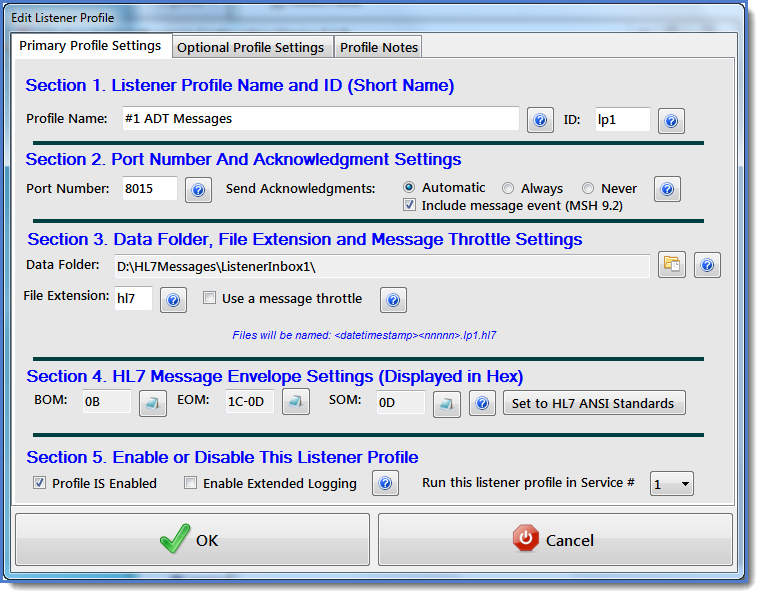
Edit Listener Profile Window
Section 1. Listener Profile Name and ID (Short Name)
•Profile Name. Enter a unique name for this listener up to 50 characters long.
•Profile ID. A short name (2-4 alpha-numeric characters) which is also unique for each profile. The Profile ID is used when naming the hl7 message data files written to the Data Folder so having a unique ID here assures that you can have multiple listener profiles all writing data to the same Data Folder without having the worry of duplicate file names being overwritten.
Section 2. Port Number and Acknowledgement Settings
•HL7 Port Number. Enter the TCP/IP port number on which this listener profile should listen for HL7 messages. It must be a valid port number (1 - 64K) and it must NOT be in use by any other listener profiles or programs. Also, if you've enabled the Global System Monitor this port number cannot be the same as the Global Monitor Port.
HL7 Acknowledgment Settings
oAlways. The listener will send an HL7 acknowledgment for every message received.
oNever. The listener will never send an HL7 acknowledgment back to the client.
oAutomatic. The listener will determine whether to send an HL7 acknowledgment back to the client based on field 15 of the MSH segment (Acknowledgment Type) of each message. When using the Automatic setting the Listener will always "Assume" that you DO want to return an acknowledgment and will only NOT send one if field 15 contains the value "NE".
oNEW In Version 5.1: The Include Message Event check box. If checked then your listener will include the HL7 message event (MSH 9.2) from incoming messages to the HL7 acknowledgments that are sent back to the sender. NOTE that this feature is typically NOT required by any truly HL7 compliant trading partner. The message event being set in the ACK message which the listener returns is usually optional. This feature was added to insure compatibility with certain medical hardware devices in the USA which absolutely require it.
Section 3. Data Folder, File Extension and Message Throttle Settings
•Data Folder. The full path to the folder where the listener should store HL7 messages which it receives. IMPORTANT NOTE: If you intend to run your listeners as a MS Windows Service (see Running as a Service) then this folder should always reside on a LOCAL DISK DRIVE and not on a network share or a mapped virtual drive (even a local drive alias) unless ABSOLUTELY NECESSARY. See Troubleshooting for more information on using Network Drives. NOTE: When profiles are saved the program will create a sub-folder called 'TrafficLogs' inside of the data folder if it does not already exist. This folder is necessary for the Listener Service to run and should not be removed. NEW in version 5.2.1 you can now double-click in the Data Folder field to edit the value by hand.
•File Extension. The file extension that the profile should use when writing HL7 message files to the data folder.
Question: What is a Message Throttle (also called a 'Governor')?
Answer: With a message throttle you can configure your listener profile to restrict the speed of incoming HL7 messages by implementing a tiny delay before your listener responds to (returns a HL7 Acknowledgment) each HL7 message it receives.
Question: When would you need to implement a HL7 message traffic throttle?.
Answer: The answer really depends on your needs and capabilities as well as the capabilities of your HL7 trading partners (ie whomever is transmitting messages to your listener). Before you implement any HL7 interface you must first determine what your needs and expectations are. The UltraPort Listener is capable of receiving HL7 messages VERY quickly right out of the box, but even it can be overwhelmed if inundated with incoming traffic at very high speeds. In the market today there is specialized hardware available costing sometimes tens of thousands of dollars specially designed to transmit HL7 messages at high speed (100, 150 or even 200+ messages per second). Just remember the old rule of computer science, "In a battle between a hardware solution and a software solution, the hardware solution wins every time".
 Important: You should only use a message throttle when your HL7 Acknowledgment settings are set to 'Always' or if it's set to 'Automatic' and your HL7 messages do not explicitly indicate to NE (never) send an HL7 ACK. Using the 'Throttle' as a solution to reduce speed relies on the fact that your trading partner is waiting for an HL7 ACK before transmitting more messages.
Section 4. HL7 Message Envelope Settings (Displayed in Hex)
•BOM. The beginning of message character(s). All HL7 messages sent to this listener must begin with this character(s). The ANSI HL7 standard is a single Hex (0B) character
•EOM. The end of message character(s). All HL7 messages sent to this listener must end with these character(s). The ANSI HL7 standard is a Hex (1C) followed by a Hex(0D)
•SOM. The HL7 message segment delimiter. HL7 messages are made up of 'Segments'. The segments must be separated by this character(s). The ANSI HL7 standard is a single carriage return character (a Hex(0D) ).
Section 5. Enable or Disable this Listener Profile
•Profile Is Enabled. If this box is checked then when the profile runs (either as a service or locally) a listener engine will be created for this profile, otherwise the profile is ignored.
•Enable Extended Logging. If checked then when running this listener profile will create extended "Debugging" log entries in the daily system log (located in the 'Logs' sub-folder of the installation folder). This checkbox will OVERRIDE your Log Level settings in the Global Settings. Even if you have turned logging completely off in your Global Settings checking this box will override that choice and create a daily event log for just this profile.
•Run this profile in Service #. Starting with version 4.1 we offer you 4 different UltraPort Listener MS Windows Services which you can use to run your listener profiles. This setting is only applicable if you own a license which allows you to run the MS Windows Services at all (IE not a DEMO or DEVELOPER license). Also, if you only own a Single Port license you should always choose Service #1. See Running as a Service for more information.

Getting Started With The UltraPort Listener
Sections 6 and 7 See Optional Profile Settings.