Primary Listener Profile Settings
You create "Listener Profiles" which contain information about how the listener will receive HL7 messages and which UltraPort SQL Schema will receive those messages. You can create as many listener profiles as you wish and have valid API Key files for. You should always be aware of the POSSIBLE limitations you might have (See Best Practices) based on the performance of your SQL or MySQL server(s).
TAB: SQL Schema Engine Interface
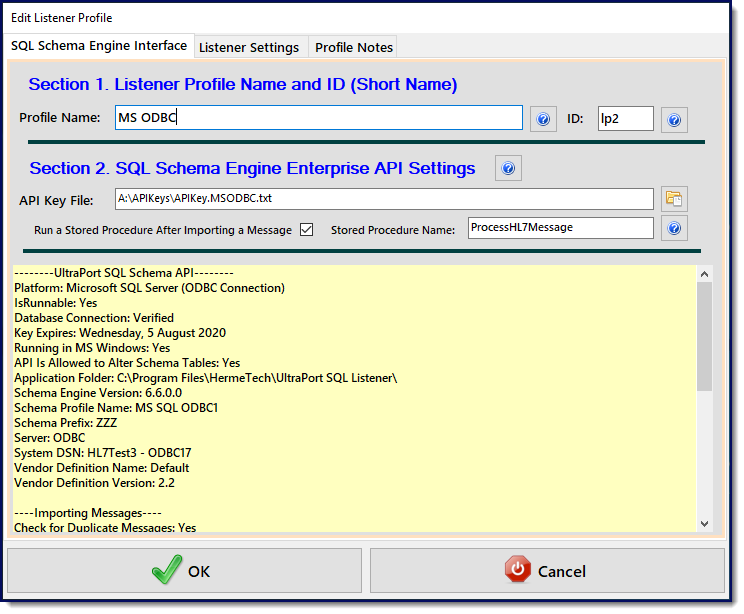
Edit Listener Profile Window
Section 1. Listener Profile Name and ID (Short Name)
•Profile Name. Enter a unique name for this listener up to 50 characters long.
•Profile ID. A short name (2-4 alpha-numeric characters) which is also unique for each profile. The Profile ID is used when naming the traffic log files and system log files as well as in the Acknowledgments table in your SQL Schema so having a unique ID here assures that you can have multiple listener profiles all receiving messages without having the worry of duplicate file names or records being overwritten.
Section 2. API Key File and (optional) Stored Procedure
•API Key File. Click the 'Browse' button to select the SQL Schema Engine API Key file for this Listener profile. If the file is valid a report will be generated and fill the yellow report section, if not an error report will be generated.
•Run a Stored Procedure After Importing a Message. If checked you then enter the name of the Stored Procedure to run. The stored procedure MUST follow the rules for inbound stored procedures laid out in the online help for the UltraPort SQL Schema Engine (See Online Manuals).
TAB: Listener Settings
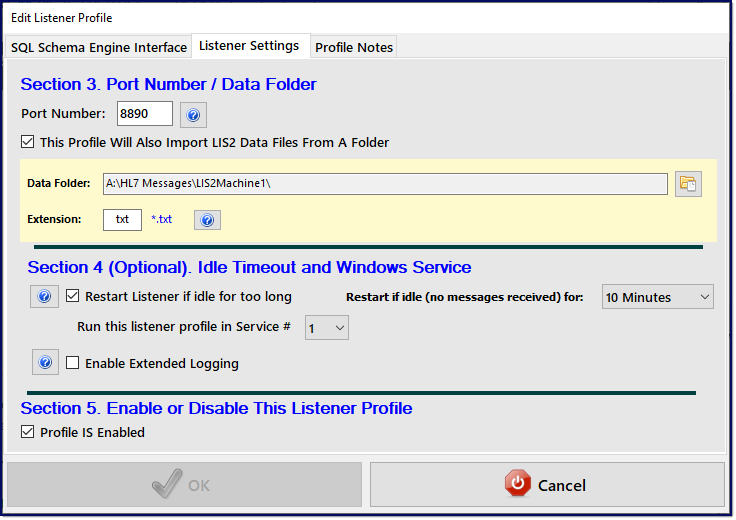
Edit Listener Profile Window
Section 3. Port Number / Data Folder
•HL7 Port Number. Enter the TCP/IP port number on which this listener profile should listen for HL7 messages. It must be a valid port number (1 - 64K) and it must NOT be in use by any other listener profiles or programs.
NEW In Version 2.0
•This Profile Will Also Import LIS2 Data Files From A Folder. If checked your software will also poll a data folder for LIS2-A2 data files. When checked the yellow section will appear for you to enter the values needed.
•Data Folder: Click the folder browse button or double click in this field to enter the folder name manually.
•Extension: The file extension your listener profile should search for. This field must be 1-5 characters long and MUST be alpha-numeric (the _ character is also allowed). No wildcard characters or other punctuation is allowed.
Section 4. (Optional) Idle Timeout
Restart Listener if Idle for too long. In order to exchange HL7 messages securely over TCP/IP with a remote HL7 sender you have to implement a VPN. It can be tricky
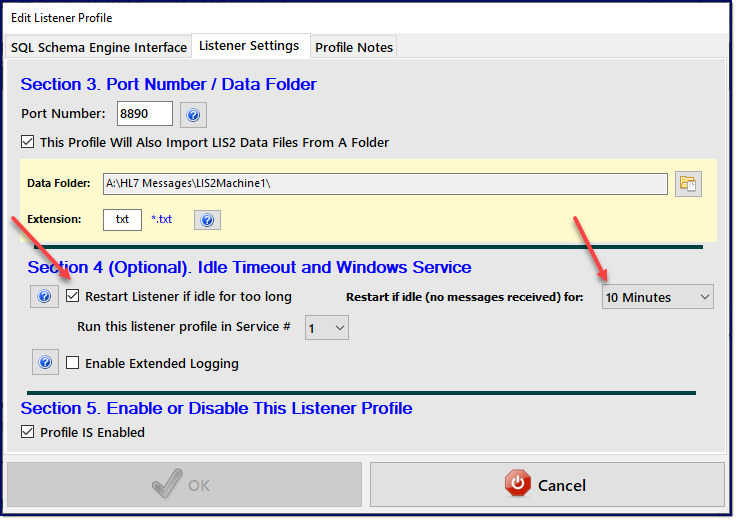
Section 7 (Click to Zoom)
to configure a VPN properly to exchange HL7 messages over TCP/IP to a MLLP HL7 Listener (like the UltraPort Listener). If not configured properly the VPN can fail to recognize that a socket connection is no longer valid and will continue to try and deliver HL7 messages. This can result in the HL7 sender receiving errors when sending HL7 messages to the listener, even though the listener itself is actually working fine.
While the listener itself cannot really do anything about this issue, you may be able to mitigate the effects by using the Idle Timeout. If enabled the listener will periodically destroy and recreate itself if it has been idle (IE no HL7 messages received) for the designated period of time.
IMPORTANT: The Idle Timeout is only implemented in the UltraPort Listener Windows Services (NOT when running locally). And while this option is perfectly "safe" to implement we don't recommend using it unless you have experienced connectivity problems similar to the ones described above.
Q: If it's "safe", why don't you recommend it.
A: Because, if implemented, it will cause the listener to be "down" for up to 1 second while it resets itself. Example: You set the Idle Timeout to 10 minutes, and there are no HL7 messages received for 10 minutes. The listener resets itself and at EXACTLY that instant your Trading Partner decides to send you a message and they would receive an "Unable to Connect" error. We say that it's "safe" because ANY HL7 compliant HL7 sending software will recognize that error and attempt to resend the message.
•Enable Extended Logging. If checked then when running this listener profile will create extended "Debugging" log entries in the daily system log (located in the 'Logs' sub-folder of the installation folder). This checkbox will OVERRIDE your Log Level settings in the Global Settings. Even if you have turned logging completely off in your Global Settings checking this box will override that choice and create a daily event log for just this profile.
•Run this profile in Service #. Starting with version 4.1 we offer you 4 different UltraPort Listener MS Windows Services which you can use to run your listener profiles. This setting is only applicable if you own a license which allows you to run the MS Windows Services at all (IE not a DEMO or DEVELOPER license). Also, if you only own a Single Port license you should always choose Service #1. See Running as a Service for more information.
Section 5. Enable or Disable this Listener Profile
•Profile Is Enabled. If this box is checked then when the profile runs (either as a service or locally) a listener engine will be created for this profile, otherwise the profile is ignored.
TAB: Profile Notes
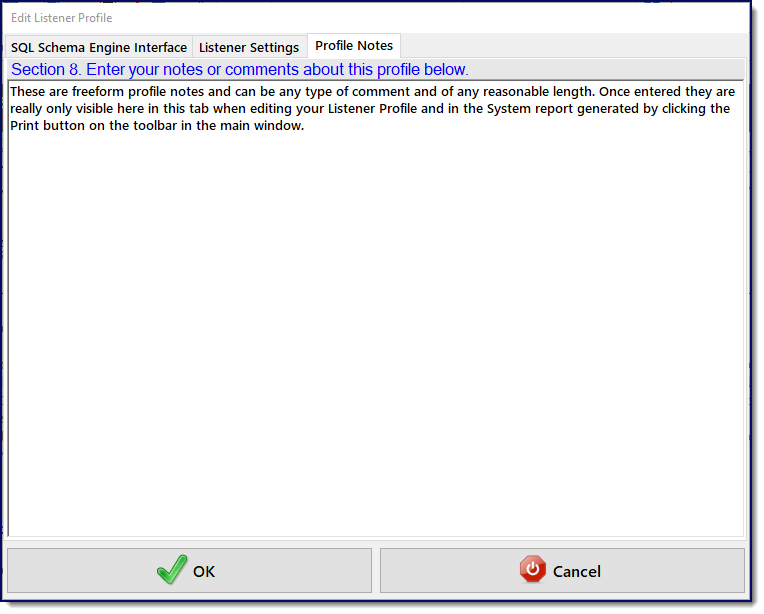
Profile Notes
Section 8. Enter your notes or comments about this profile.
In this section you can enter any free-form notes or comments you might have about the listener profile. The note will be visible in this tab when you edit your listener profile(s) and also in the System report which is created when you click the Print button on the toolbar in the main window.