Using the UltraPort SQL Listener Monitor
The listener monitor is a separate program that installs with the UltraPort SQL HL7 Listener software. You open it by selecting Open Listener Monitor from the Tools menu in the Main Window.
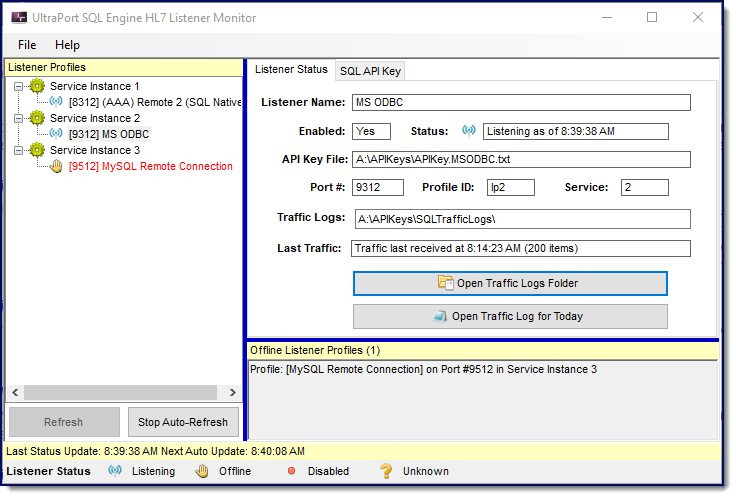
The UltraPort SQL Engine HL7 Listener Monitor
The Listener Monitor was designed to give you the maximum amount of information visually just by looking at the screen. With just a glance at the screen-shot above we can tell:
•In the left pane under Listener Profiles we can see that we have 3 enabled Listeners which are spread across 3 of the MS Windows Services.
•Also in the left pane we can see that ONE of those Listeners is offline and that 2 are actively listening. We don't know exactly what the problem is with the Listener running in Service Instance 3 just that it's off-line and we should investigate that problem.
•In the left pane we have clicked on the [9312] MS ODBC node in the tree under Service Instance 2. This means that we have a Listener running with a Profile named MS ODBC which is actively listening on Port #9312. When you click on an individual item in the tree then the RIGHT pane is populated with information from the Listener Profile which was created by you in Listener Profiles.
•In the right pane we can see that the our MS ODBC profile is Enabled, the Profile ID (or Short Name) is lp2.
•We can see the name of the API Key File.
•In Status we can see that the listener is actively listening as of 8:39:38 AM.
•We can see that Traffic Logging has been enabled in your Global Settings as well as the Traffic Logs folder.
•In Last Traffic we can see that the last HL7 message was received at 8:14:23 AM and that this listener has received 200 HL7 messages as of that time.
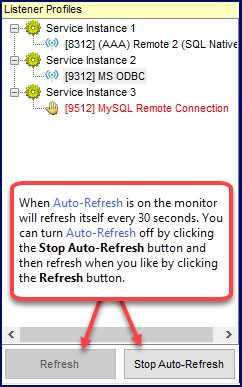 Auto-Refresh |
Using Auto-Refresh
When the Listener Monitor starts Auto-Refresh will be turned on by default. This means that the monitor will refresh itself every 30 seconds.
It also means that it will keep a watch on your Listener Profiles by monitoring the last modified timestamp on the XML file which contains your listener profiles (HL7SQL.Listener.Profiles.xml) which is in the installation folder. Should that file be changed (IE you have made some changes to your Listener Profile(s) or Global Settings) it will notify you in a popup message box and reload all of your profile information from disk.
You control Auto-Refresh in the left pane at the bottom. You will note the two buttons Refresh and Stop Auto-Refresh. When the program starts and Auto-Refresh is ON the Refresh button is disabled. To turn Auto-Refresh OFF click the Stop Auto-Refresh button.
When Auto-Refresh is turned off you will notice that the Refresh button becomes enabled and the Stop Auto-Refresh button text changes to just Auto-Refresh. Now you can refresh your listener monitor manually by clicking the Refresh button.
Turn Auto-Refresh back on by clicking the Auto-Refresh button. |

Under Construction