Primary Listener Profile Settings
You create "Listener Profiles" which contain information about how the listener will receive HL7 messages and which UltraPort SQL Schema will receive those messages. You can create as many listener profiles as you wish and have valid API Key files for. You should always be aware of the POSSIBLE limitations you might have (See Best Practices) based on the performance of your SQL or MySQL server(s).
TAB: SQL Schema Engine Interface

Edit Listener Profile Window
Section 1. Listener Profile Name and ID (Short Name)
•Profile Name. Enter a unique name for this listener up to 50 characters long.
•Profile ID. A short name (2-4 alpha-numeric characters) which is also unique for each profile. The Profile ID is used when naming the traffic log files and system log files as well as in the Acknowledgments table in your SQL Schema so having a unique ID here assures that you can have multiple listener profiles all receiving messages without having the worry of duplicate file names or records being overwritten.
Section 2. API Key File and (optional) Stored Procedure
•API Key File. Click the 'Browse' button to select the SQL Schema Engine API Key file for this Listener profile. If the file is valid a report will be generated and fill the yellow report section, if not an error report will be generated.
•Run a Stored Procedure After Importing a Message. If checked you then enter the name of the Stored Procedure to run. The stored procedure MUST follow the rules for inbound stored procedures laid out in the online help for the UltraPort SQL Schema Engine (See Online Manuals).
TAB: Listener Settings

Edit Listener Profile Window
Section 3. Port Number and Throttle Settings
•HL7 Port Number. Enter the TCP/IP port number on which this listener profile should listen for HL7 messages. It must be a valid port number (1 - 64K) and it must NOT be in use by any other listener profiles or programs.
Question: What is a Message Throttle (also called a 'Governor')?
Answer: With a message throttle you can configure your listener profile to restrict the speed of incoming HL7 messages by implementing a tiny delay before your listener responds to (returns a HL7 Acknowledgment) each HL7 message it receives.
Question: When would you need to implement a HL7 message traffic throttle?.
Answer: The answer really depends on your needs and capabilities, the capabilities of your HL7 trading partners (ie whomever is transmitting messages to your listener), and most importantly the capabilities of your SQL or MySQL server. Before you implement any HL7 interface you must first determine what your needs and expectations are. The UltraPort TCP/IP Listener is capable of receiving HL7 messages VERY quickly right out of the box, since it is tied to your SQL Schema Engine it is limited to how fast your messages can be imported into your database. In our labs we have benchmarked the SQL Listener at being able to import more than 150,000 message per hour under optimal conditions but your experience can vary wildly based on what exactly you are doing. See the discussion in Best Practices for more information on how to get the best performance from your listeners. Also, in the market today there is specialized hardware available costing sometimes tens of thousands of dollars specially designed to transmit HL7 messages at high speed (100, 150 or even 200+ messages per second). Just remember the old rule of computer science, "In a battle between a hardware solution and a software solution, the hardware solution wins every time".
 Important: The SQL Schema Engine HL7 Listener will ALWAYS send a HL7 acknowledgment message back for each message. You should insure that your trading partner(s) also will be accepting those acknowledgments as part of each HL7 transaction.
Section 4. Acknowledgment Settings
HL7 Acknowledgment Settings
oAlways. The listener will send an HL7 acknowledgment for every message received.
oMirror Control ID (MSH 10.1) in ACK. If checked the HL7 ACK message sent back will use the SAME message control ID (MSH 10.1) as the incoming message. If unchecked (the default) a unique message control ID is created for each ACK message. NOTE: This setting is completely optional and should NEVER be required as it is NOT part of the HL7 standard. In the ACK message the Message Control ID of the incoming message is ALWAYS sent back as part of the MSA segment.
oInclude MessageID in ACK Message. Another completely optional feature and completely unique to the SQL Engine HL7 Listener. If checked, the actual MessageID (the GUID assigned by the Schema Engine to each HL7 message) will be included in the Status Message field of the MSA segment for every successful message received and imported.
oInclude Message Event check box. If checked then your listener will include the HL7 message event (MSH 9.2) from incoming messages to the HL7 acknowledgments that are sent back to the sender. NOTE that this feature is typically NOT required by any truly HL7 compliant trading partner. The message event being set in the ACK message which the listener returns is usually optional. This feature was added to insure compatibility with certain medical hardware devices in the USA which absolutely require it.
Section 5. (Optional) MSH Validation
With the UltraPort HL7 Listeners you can control which HL7 messages are accepted by your listener based on values in the MSH (Message Header) segment by checking 'Enable MSH Validation'. Checking the After you check 'Evaluate MSH Segment for NAK' box you click the 'Edit MSH Validation' button to open the window shown below.
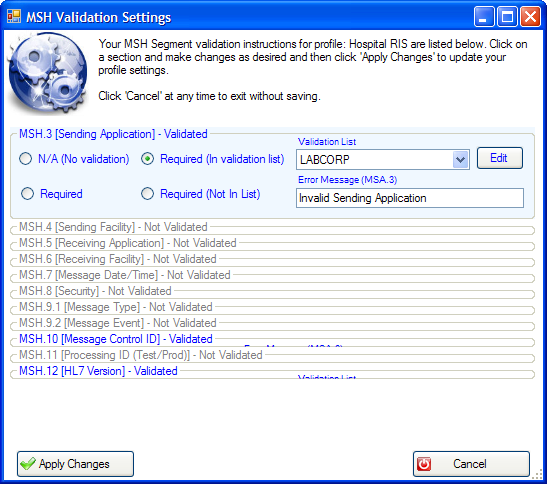
MSH Validation Settings
In this window you simply click on the MSH field you wish to validate and choose one of the options available. Then you can enter a custom Error Message which the listener will send back to the client in an HL7 NAK. Validation Options are:
•N/A (No Validation). There will be no validation done on this field. NOTE: When looking at this window fields which are highlighted in BLUE have some type of validation.
•Required. Simple validation. The field must NOT be blank.
•Required (In validation list). The field not only must contain a value but the value MUST be in the validation list (click the 'Edit' button to add/remove items).
•Required (Not in List). The field MUST contain a value (ie not blank) AND the value MUST NOT be in the validation list.
Further information. When an inbound HL7 message fails your validation instructions a NAK is sent back to the client and the message is discarded. You can see which HL7 messages are rejected and a NAK sent back in your daily Traffic Logs IF you have enabled Traffic Logging (See Global Settings).
To view/edit a validation list click the 'Edit' button next to the validation list drop down list. Type your entries into the data entry space provided pressing 'Enter' after each entry. NOTE: The validation is NOT case sensitive (ie Labcorp and LABCORP are identical).
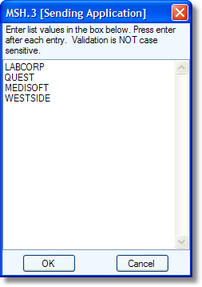
Editing a Validation List
Section 6. (Optional) Alternate ACKs and Idle Timeout
Alternative HL7 ACKS. By default whenever the UltraPort SQL Listener receives a message that requires an acknowledgment it sends back a standard HL7 Acknowledgment of type AA (message was accepted AND imported). The listener can also send back a negative HL7 Acknowledgment of type AR (message was rejected) IF you are using the MSH Validation feature (see Section 5) OR if the database import message operation fails for some reason (SQL Server is down, etc).
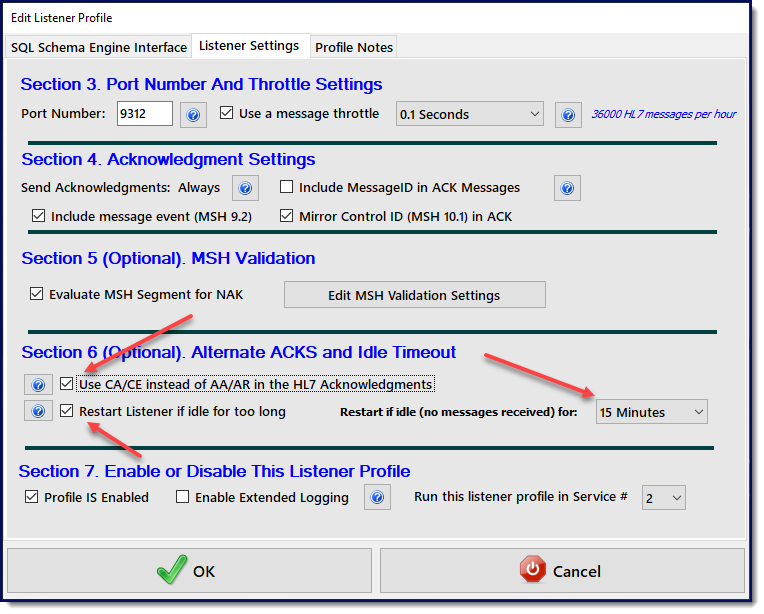
By checking the Use CA/CE instead of AA/AR in the HL7 Acknowledgments box in your listener profile you can instruct the UltraPort Listener to use the alternative positive acknowledgment type of CA (HL7 Conditionally Accepted ACK) or CE (message was rejected due to error). As with the default settings the CE acknowledgment type will only be produced when you are using MSH Validation (see Section 5).
Restart Listener if Idle for too long. In order to exchange HL7 messages securely over TCP/IP with a remote HL7 sender you have to implement a VPN. It can be tricky
Section 7 (Click to Zoom)
to configure a VPN properly to exchange HL7 messages over TCP/IP to a MLLP HL7 Listener (like the UltraPort Listener). If not configured properly the VPN can fail to recognize that a socket connection is no longer valid and will continue to try and deliver HL7 messages. This can result in the HL7 sender receiving errors when sending HL7 messages to the listener, even though the listener itself is actually working fine.
While the listener itself cannot really do anything about this issue, you may be able to mitigate the effects by using the Idle Timeout. If enabled the listener will periodically destroy and recreate itself if it has been idle (IE no HL7 messages received) for the designated period of time.
IMPORTANT: The Idle Timeout is only implemented in the UltraPort Listener Windows Services (NOT when running locally). And while this option is perfectly "safe" to implement we don't recommend using it unless you have experienced connectivity problems similar to the ones described above.
Q: If it's "safe", why don't you recommend it.
A: Because, if implemented, it will cause the listener to be "down" for up to 1 second while it resets itself. Example: You set the Idle Timeout to 10 minutes, and there are no HL7 messages received for 10 minutes. The listener resets itself and at EXACTLY that instant your Trading Partner decides to send you a message and they would receive an "Unable to Connect" error. We say that it's "safe" because ANY HL7 compliant HL7 sending software will recognize that error and attempt to resend the message.
Section 7. Enable or Disable this Listener Profile
•Profile Is Enabled. If this box is checked then when the profile runs (either as a service or locally) a listener engine will be created for this profile, otherwise the profile is ignored.
•Enable Extended Logging. If checked then when running this listener profile will create extended "Debugging" log entries in the daily system log (located in the 'Logs' sub-folder of the installation folder). This checkbox will OVERRIDE your Log Level settings in the Global Settings. Even if you have turned logging completely off in your Global Settings checking this box will override that choice and create a daily event log for just this profile.
•Run this profile in Service #. Starting with version 4.1 we offer you 4 different UltraPort Listener MS Windows Services which you can use to run your listener profiles. This setting is only applicable if you own a license which allows you to run the MS Windows Services at all (IE not a DEMO or DEVELOPER license). Also, if you only own a Single Port license you should always choose Service #1. See Running as a Service for more information.
TAB: Profile Notes
Profile Notes
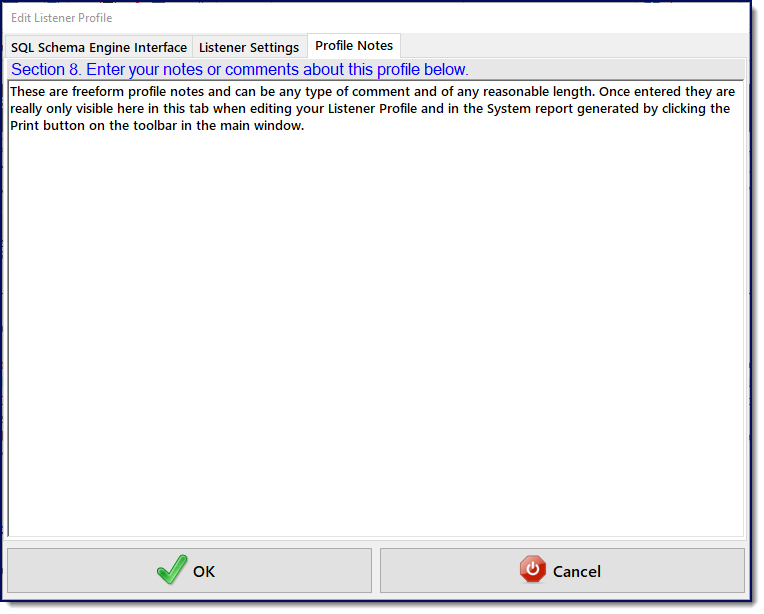
Section 8. Enter your notes or comments about this profile.
In this section you can enter any free-form notes or comments you might have about the listener profile. The note will be visible in this tab when you edit your listener profile(s) and also in the System report which is created when you click the Print button on the toolbar in the main window.