Your global settings affect all of your listener profiles and also allows you to configure certain system log settings. IMPORTANT. Every time you make a change to the global settings you must remember to restart the Windows Service for the changes to take effect.
Open the global settings window by clicking the  button on the toolbar in the main window.
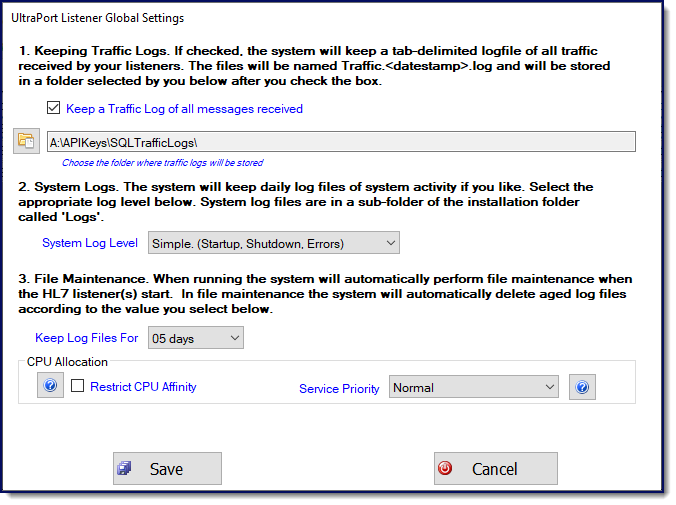
Global Settings
While the settings in this window are fairly self-evident there are some which bear discussion.

IMPORTANT: Setting #1 (Keeping Traffic Logs). Enabling this setting is HIGHLY recommended. If you DO NOT enable it you will lose some important functionality of the SQL Listener Monitor application.
TRAFFIC LOGS (item 2 in the settings window). An exciting feature of the UltraPort Listener is the ability to maintain daily tab delimited log files which pull up very nicely in MicroSoft Excel
|
CPU Allocation allows users a small measure of control over how the UltraPort Listener MS Windows services use the CPU cores and how the OS prioritizes the service(s) in relation to other processes/programs running on the system. IMPORTANT: The CPU Allocation settings ONLY affect the MS Windows services, so if you are running in LOCAL mode these settings have no impact.
Disclaimer: The UltraPort SQL Listener services are largely event driven and generally are NOT huge consumers of your system resources (IE Memory, Disk, and CPU) so these settings would typically be ignored. However, if you think you may experience very high OVERALL traffic (say in excess of 350,000 messages per hour sustained), OR you are running many UltraPort Listener profiles which all are receiving sustained traffic, OR if your UltraPort Listener is running on a very busy system, then you may want to work with these settings if your trading partners start to report problems connecting or receiving timely HL7 Acknowledgments.
Restrict CPU Affinity
This setting, if checked, will restrict the services so that they only use certain CPUs on multi-CPU systems. NOTE: For single core CPU systems this setting has no effect. If the system has 2 CPUs the services will only use CPU #2. If a system has 4 CPUs the services will only use CPUs #3 and #4. For systems with 8 or more CPUs the services will only use the LAST 4 CPUs (on a 32 CPU system the services would only use CPUs #29, #30, #31, and #32). As mentioned in the disclaimer above, since the UltraPort Listener is largely event driven, it is not a huge consumer of CPU resources typically.
Service Priority
Like a roomful of children, running processes/programs, cry for attention from the operating system when they are running which tries to give them attention fairly and equally. The vast majority of programs will be running will be running with a NORMAL priority which basically means "treat me just like everyone else" when I ask for resources. Some programs, Screen Savers for instance, run with an IDLE priority which means that they will not actually do anything unless the system is idle. If you are running many listener profiles and receiving sustained traffic you might want to increase the priority which the UltraPort Listener services run as. If you are receiving hundreds of thousands of HL7 messages per hour there are many different thread operations being conducted by the Listener services which will be crying for attention from the operating system. NOTE: Setting this value to other than NORMAL can mean that other processes can suffer.
|
© 2023 HermeTech International
A Division of TransWorld Scribes Ltd