While you should always refer to the online help for the SQL Schema Engine (See Online Manuals) we can give you a brief overview of what needs to be done.
 Click to Expand
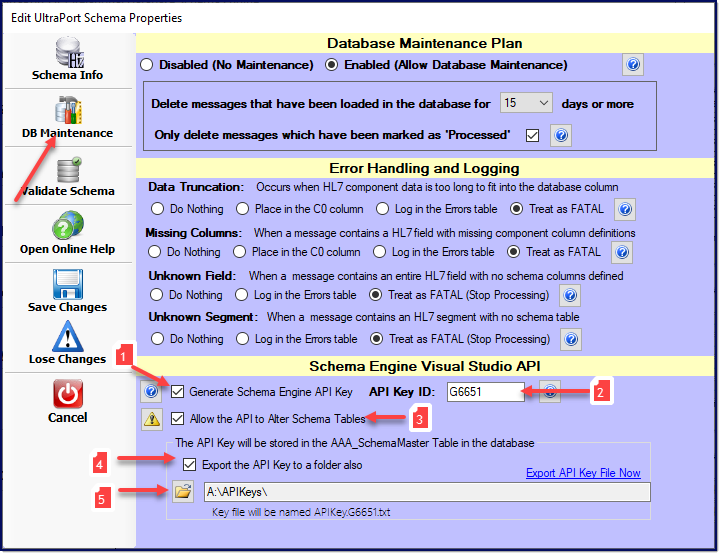
When creating or editing your SQL Schema Profile you click on the DB Maintenance button on the toolbar to access the Maintenance Settings. At the bottom of this screen is the Schema Engine Visual Studio API area which is where you set up your API Key for each profile. You need to check the boxes as shown above with only 2 differences.
1.To have the Schema Engine generate API Keys. When creating or editing your database schema click DB Maintenance on the toolbar and then as shown in the screenshot above:
1.Check Generate Schema Engine API Key 2.Enter the API Key ID. This is any 4 - 8 character alphanumeric value you like with the only caveat being that you cannot use the same API Key ID in another database schema. This API Key ID will be used by the Database Maintenance Service when naming the API Key File(s) it will export. Files will be named APIKey.<api key id>.txt 3.Check Allow the API to Alter Schema Tables. While this is technically optional, you must check this box if you want any application which uses your API Key to be able to perform Schema Training. 4.Check Export the API Key to a folder also. Which will make #5 visible. 5.Choose the folder where the maintenance service should export this API Key File to by clicking the button.
Save your changes and restart the Database Maintenance service (if it was running). You should see your API Key file appear in the export folder a few seconds later.
You will note that it will show you at the bottom of the screen what your key file will be named which will be APIKey.<api key id>.txt, where <api key id> is the value you entered in the API Key ID field. Once this has been set and saved, you just restart the SQL Schema Engine's Database Maintenance service and you should notice your key file appears in the folder you've selected using the naming convention shown above.
The Database Maintenance Service will create/update key files whenever the service starts and every 24 hours thereafter.
Bonus Hint: In the Schema Info section (not shown above) be sure and check the AutoTrain Your Schema box for maximum effectiveness.
|