As anyone who works with HTML knows sometimes you need some extra screen "real-estate" to zero in on your code. In the main template editor look for this icon ( ) in the toolbars and menus. Clicking on these buttons will open the Full-Screen HTML Editor window. This window is a sub-class of the main Template Editor window which will always open in a maximized state with only the HTML Editor and Preview options available.
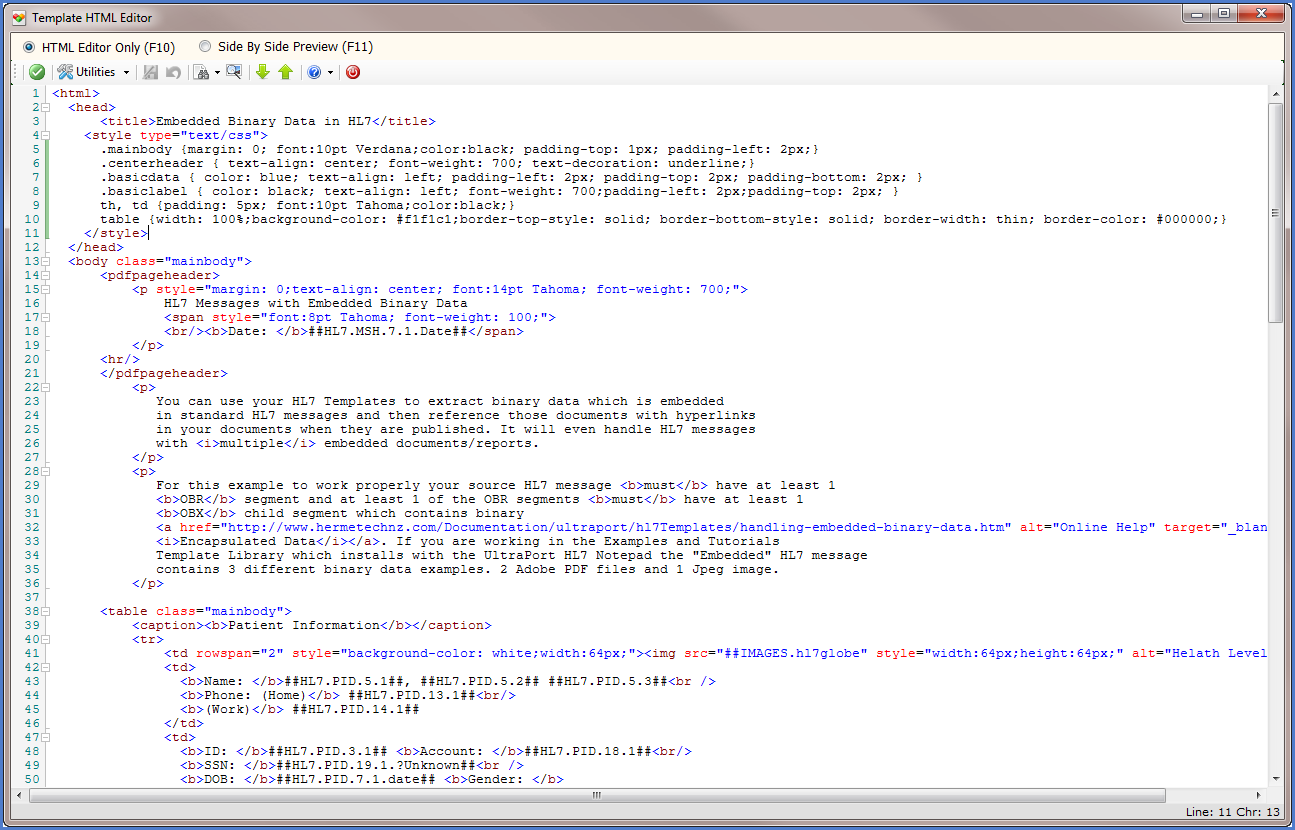 Full Screen HTML Editor Window (Editor Only View) |
 Full Screen Editor (Side by Side View) |
In the Full-Screen Editor window you can opt to show only the HTML Editor or you can opt to use a "side-by-side" view with the Document Preview window.
HOT KEYS in the Full-Screen Editor Window
•F10 = Show Editor Only
•F11 = Show "Side-By-Side" view
•F12 = Refresh the Preview Window
•F8 = Set the focus to the Editor
•Esc = Closes the Full-Screen Editor